using Pkg
try
# Activate the local project
Pkg.activate(@__DIR__)
# Check if Manifest exists, if not instantiate
if !isfile(joinpath(@__DIR__, "Manifest.toml"))
Pkg.instantiate()
else
# Try to resolve any inconsistencies
Pkg.resolve()
end
catch e
@warn "Package environment setup failed, attempting recovery" exception=e
Pkg.activate(@__DIR__)
Pkg.instantiate()
endLab 1: Julia Setup & Hello World
CEVE 421/521
1 Overview
Welcome to CEVE 421/521! This lab will guide you through setting up the software tools we’ll use throughout the semester. By the end of this lab, you’ll have a working Julia environment and will create your first visualization.
2 Pre-Lab Requirements
Complete these steps before coming to lab. Budget 30-60 minutes for installation. If you get stuck, note where you stopped and we’ll troubleshoot in class.
2.1 Create a GitHub Account
If you don’t already have one, create a free account at github.com. Use your Rice email to get access to additional student benefits.
2.2 Accept the GitHub Classroom Assignment
- Go to Canvas and find the Lab 1 assignment
- Click the GitHub Classroom link
- Accept the assignment to create your personal repository
- You’ll get a link to your new repo (e.g.,
CEVE-421-521/lab-01-S26-yourname)
2.3 Install GitHub Desktop
Download and install GitHub Desktop. This provides a visual interface for Git operations.
Experienced users can use the command line or another Git client, but GitHub Desktop is recommended for this course.
2.4 Clone Your Repository
- Open GitHub Desktop
- Click “Clone a repository from the Internet”
- Find your lab repository under your GitHub account
- Important: Choose a local path that is NOT in OneDrive, Google Drive, iCloud, or any synced folder
- Recommended: Create a folder like
~/CEVE-421-521/and clone into it - Your path should be something like
~/CEVE-421-521/lab-01-S26-yourname
- Recommended: Create a folder like
Cloud sync services (OneDrive, Google Drive, Dropbox) can corrupt Git repositories. Always store code repositories in a non-synced folder.
2.5 Install Visual Studio Code
Download and install VS Code. Then install the Julia extension:
- Open VS Code
- Click the Extensions icon in the left sidebar (or press
Ctrl+Shift+X/Cmd+Shift+X) - Search for “Julia”
- Install the “Julia” extension by julialang
2.6 Install Julia via Juliaup
We use Juliaup to manage Julia installations.
Windows: Open PowerShell and run:
winget install julia -s msstoremacOS/Linux: Open Terminal and run:
curl -fsSL https://install.julialang.org | shAfter installation, set Julia 1.12 as the default:
juliaup add 1.12
juliaup default 1.12
Verify your installation by opening a new terminal and running:
julia --versionYou should see julia version 1.12.x.
TipCEVE 543 Students
We used Julia 1.11 in CEVE 543 last semester. If you don’t install version 1.12 here, you’ll run into errors later.
2.7 Install Quarto
Download and install Quarto. This is the document rendering system we use for labs.
Verify installation:
quarto --version2.8 Set Up GitHub Copilot (Optional but Recommended)
GitHub Copilot is an AI coding assistant that can help you write code. Students get free access:
- Apply for the GitHub Student Developer Pack
- Once approved, install the “GitHub Copilot” extension in VS Code
- Sign in with your GitHub account
You are also welcome to explore other AI coding tools such as Claude Code and OpenAI Codex, but these generally have no, or limited, free plans.
2.9 Activate the Julia Environment
- Open your cloned lab folder in VS Code. You can do this directly from GitHub desktop.
- Open the VS Code terminal (
Ctrl+``orCmd+``) - Start Julia by typing
julia - Activate and instantiate the project:
using Pkg
Pkg.activate(".")
Pkg.instantiate()
This installs all required packages for the lab.
2.10 Verify Your Setup
In VS Code, open the terminal and run:
quarto render index.qmdThis should produce two files:
index.html(web version)index.pdf(PDF version via Typst)
If both files are created without errors, your setup is complete!
3 In-Class Workflow
Now that your environment is set up, let’s complete the lab exercises.
3.1 Setup
This section loads the tools (called “packages”) we need for this lab.
We’ll load a popular plotting library
using CairoMakie- 1
-
Load the CairoMakie package, which we’ll use to create plots.
usingmakes all the functions from that package available.
3.2 Exercises
3.2.1 Exercise 1: Identify Yourself
Fill in your name, NetID, and GitHub username below. In Julia, we store values in variables using the = sign.
name = "James Doss-Gollin"
netid = "jd82"
github_username = "jdossgollin"- 1
-
Create a variable called
nameand assign it a string (text in quotes). Replace with your name! - 2
-
Create another variable called
netid. Strings can use either double quotes"..."or single quotes'...'. - 3
-
Your GitHub username is what appears in your repository URL (e.g.,
github.com/jdossgollin).
"jdossgollin"Now, Quarto will automatically print a greeting using string interpolation:
println("Hello! My name is $name and my NetID is $netid.")- 1
-
println()prints text to the screen. The$symbol inside a string inserts the value of a variable. This is called string interpolation - Julia replaces$namewith the actual value stored inname.
Hello! My name is James Doss-Gollin and my NetID is jd82.3.2.2 Exercise 2: Generate Data
Let’s create some data to visualize. We’ll generate a noisy sine wave - this simulates real-world data that has measurement error.
x = range(0, 2pi, length=50)
noise = 0.3 * randn(length(x))
y_noisy = sin.(x) .+ noise
y_true = sin.(x)- 1
-
Create 50 evenly-spaced numbers from 0 to 2π (about 6.28).
range()is like making tick marks on a ruler.piis a built-in constant in Julia. - 2
-
Generate random “noise” values.
randn(n)createsnrandom numbers from a normal distribution (bell curve centered at 0).length(x)returns how many elements are inx(50). Multiplying by 0.3 makes the noise smaller. - 3
-
Calculate noisy y-values. The dot
.beforesinand+means “apply this operation to each element” - this is called broadcasting. Without the dot, Julia would try to take the sine of the whole array at once (which doesn’t work). Sosin.(x)computes sine for all 50 x-values. - 4
- Calculate the “true” sine values without noise, for comparison.
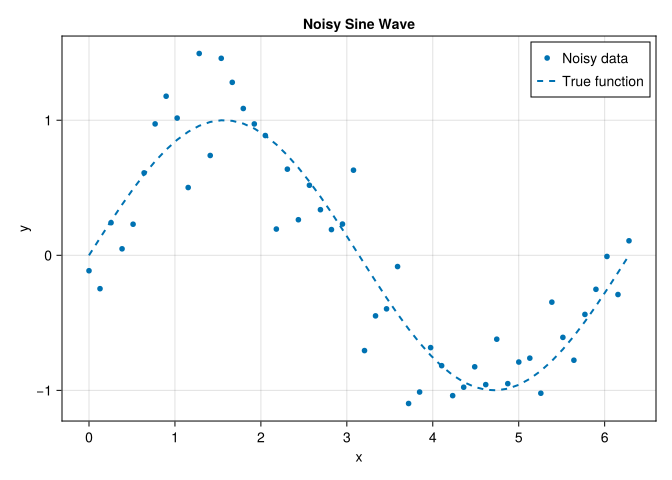
3.2.3 Exercise 3: Create a Visualization
Now let’s plot the noisy data alongside the true sine function. CairoMakie uses a “grammar of graphics” approach: you build plots layer by layer.
let
fig = Figure()
ax = Axis(fig[1, 1]; xlabel="x", ylabel="y", title="Noisy Sine Wave")
scatter!(ax, x, y_noisy; label="Noisy data", markersize=8)
lines!(ax, x, y_true; linestyle=:dash, linewidth=2, label="True function")
axislegend(ax)
fig
end- 1
-
let ... endcreates a temporary scope. Variables created inside (likefigandax) won’t clutter your workspace. This is a good habit for plotting code. - 2
- Create an empty figure - think of it as a blank canvas to draw on.
- 3
-
Add an axis (the plotting area with x/y coordinates) to the figure.
fig[1, 1]means “row 1, column 1” of a grid layout. The semicolon;separates positional arguments from keyword arguments likexlabel=,ylabel=, andtitle=. - 4
-
Add scattered points. The
!at the end ofscatter!is a Julia convention meaning “this function modifies something” (here, it adds to the axis). We pass the axis, x-coordinates, y-coordinates, and styling options. - 5
-
Add a dashed line for the true function.
:dashis a symbol - a special Julia type for named options (look up “Julia symbols” for more). - 6
-
Add a legend that automatically uses the
labeltext from each plot layer. - 7
- Return the figure so it displays. In Julia, the last expression in a block is automatically returned.
4 Submission
Follow these steps to submit your completed lab:
4.1 Push to GitHub
In GitHub Desktop:
- Review your changes in the “Changes” tab
- Write a summary (e.g., “Complete Lab 1 exercises”)
- Click “Commit to main”
- Click “Push origin” to upload to GitHub
4.2 Handle the Formatter PR
After you push, a GitHub Action will check your code formatting. If any changes are needed:
- Go to your repository on GitHub
- Look for a Pull Request titled “Format Julia code”
- If one exists, click “Merge pull request” and confirm
4.3 Pull Changes to Your Computer
After merging the formatter PR (or if there was no PR), you need to sync your local copy:
- Open GitHub Desktop
- Click “Fetch origin” in the top bar (this checks for remote changes)
- If changes are found, click “Pull origin” to download them
- Your local files are now up to date with GitHub
Always pull before you start working and after merging any PRs. This keeps your local copy in sync with GitHub.
4.4 Re-render and Submit
After pulling any changes:
quarto render index.qmdUpload the generated index.pdf file to the Lab 1 assignment on Canvas.
5 Summary
In this lab, you:
- Set up a complete Julia development environment
- Learned the lab workflow: clone → code → push → merge PR → render → submit
- Created your first Julia visualization using CairoMakie
This workflow will be the same for all labs this semester. If you have any issues, come to office hours or post on the discussion board.